
Management roles
End User
Self-service passkey management
Users select New Passkey from My Account, manage their passkeys on My Passkeys, and review their activity in My History.
Helpdesk
Support-focused access
Helpdesk operators use Manage Credentials, System Logs, and Dashboard to support users without changing global policy settings.
Administrator
Policy and governance control
Administrators use Manage Rules, Manage Settings, Manage Credentials, System Logs, and Dashboard to shape how OmniPasskey behaves across the organization.
The management interface adapts to phones, tablets, and desktop screens. On narrower screens, use the labeled navigation menu above the page content to move between the destinations available to your role. Wide credential, history, log, and rule tables scroll horizontally within their table area.
End-user tasks
Register a passkey
From My Account, users select New Passkey. On the Register Passkey page, they enter a passkey name and complete the browser and authenticator prompts. The form pre-fills the name with the current device platform when available, and the user can replace it with a recognizable name. Users can return to My Passkeys without registering, and successful registration returns there automatically with the new passkey in the list.
View, rename, and delete personal passkeys
My Account opens the My Passkeys page, which lists the user’s currently registered passkeys, including creation and most recent use. Users can select the edit control beside a passkey name to replace it with a non-empty name of up to 64 characters. They can also remove one or more passkeys if a device is lost, replaced, or retired.
Review account history
My History opens Account History, a user-focused view of registration and authentication events that includes timestamps, operation type, status, IP address, and the passkey name involved.
Helpdesk tasks
Search and review credentials
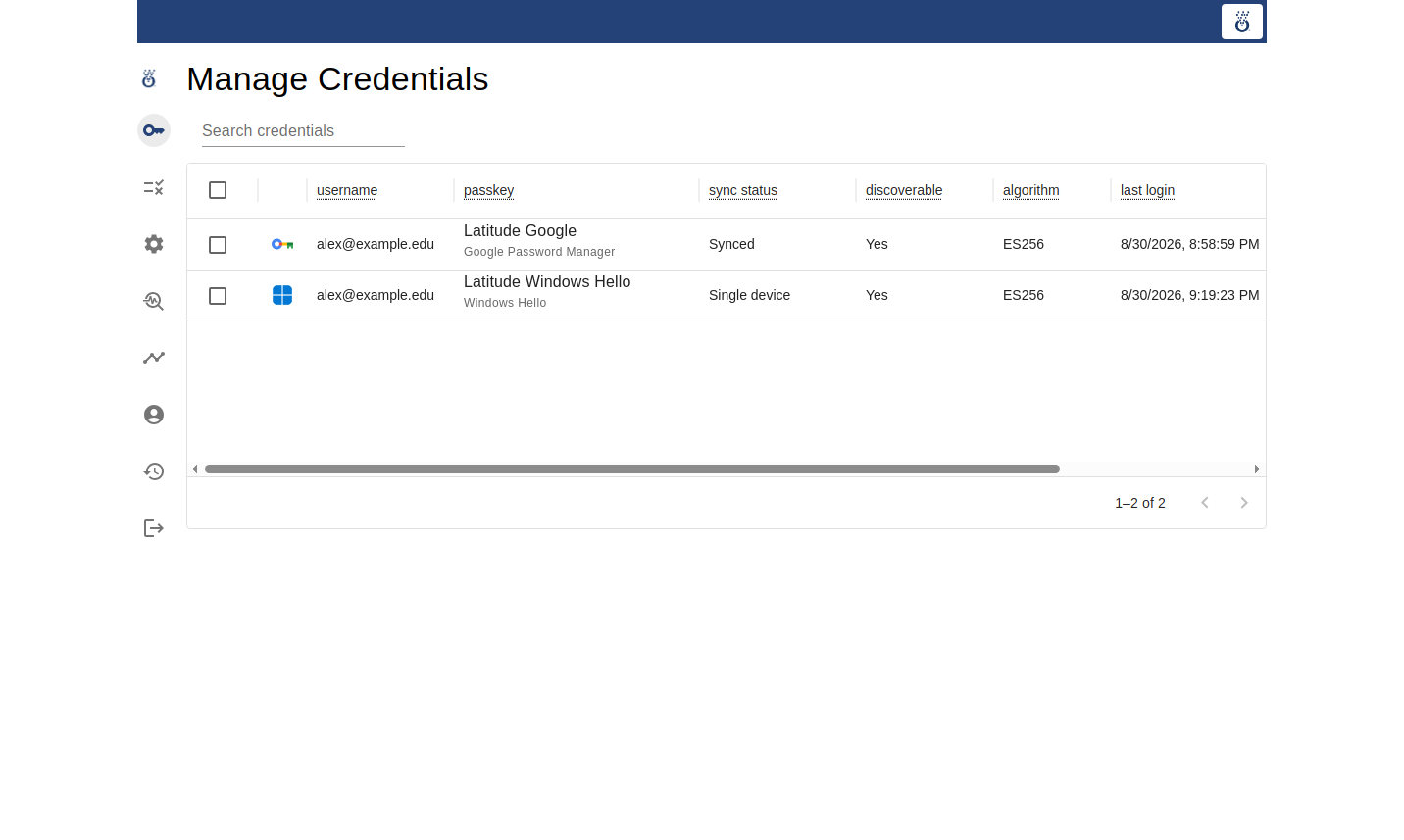
In Manage Credentials, helpdesk operators can search by username or passkey name and review the passkeys associated with a user. This makes it easier to identify duplicates, stale passkeys, or unexpected devices.
Remove credentials during support
Helpdesk teams can delete passkeys from Manage Credentials when a device has been lost, a passkey is no longer valid, or a user needs a clean restart for troubleshooting.
Investigate activity
System Logs supports operational investigation by exposing username, IP address, passkey nickname, operation type, outcome, browser user agent, platform hints, and any recorded error text.
Administrator tasks
Use the dashboard
Dashboard is designed for operational oversight and adoption tracking. It surfaces successful and failed authentications, monthly active user trends, mean authentications, and passkeys-per-user views.
Manage per-device rules
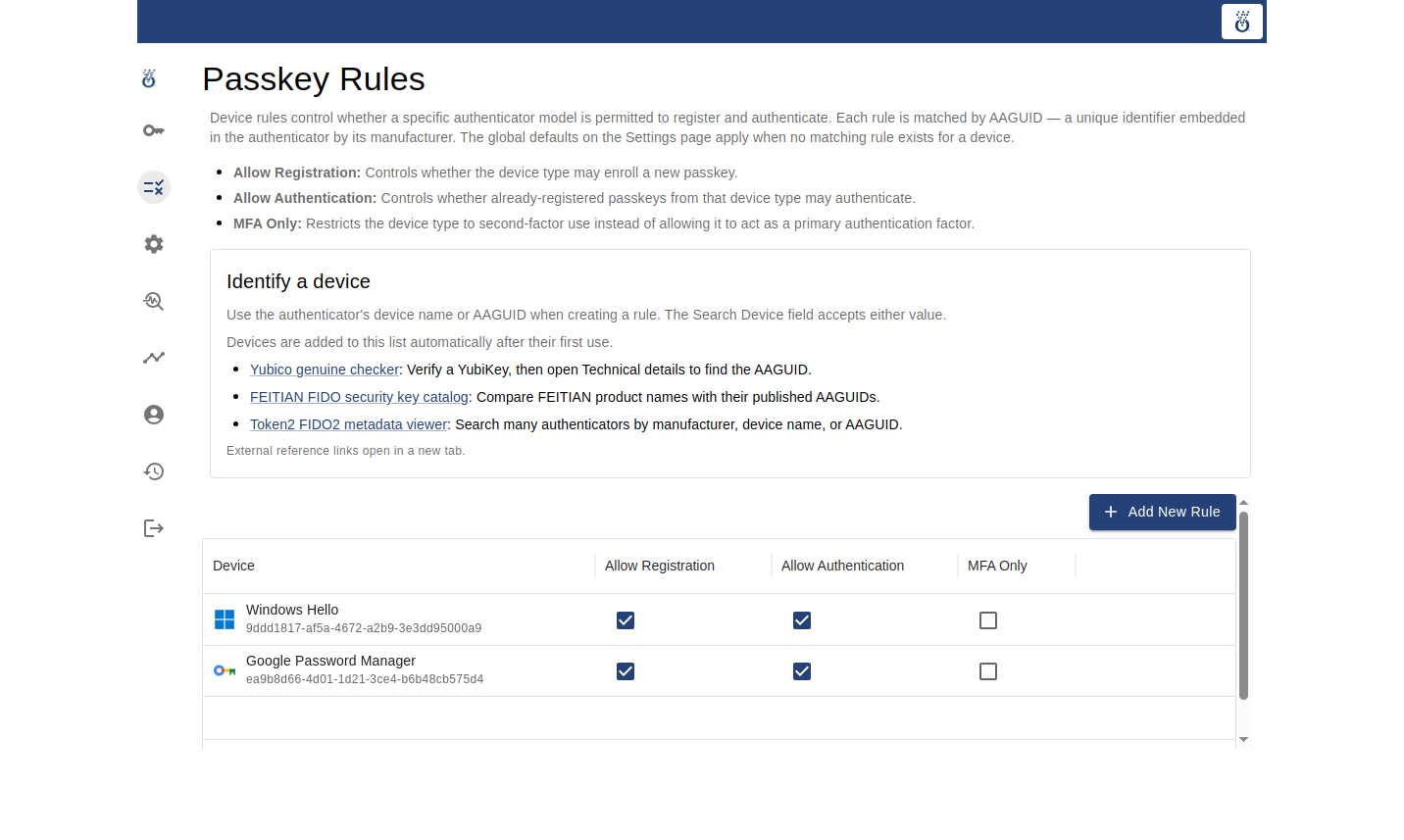
Administrators can create policy rules by authenticator AAGUID. Each rule defines whether that device type may register, whether it may authenticate, and whether it should be restricted to MFA-only use.
If you need help matching a hardware key to a rule, use the device name or AAGUID shown by the authenticator vendor. The search box in Manage Rules accepts either value.
Devices are added to the Manage Rules search list automatically after their first use.
- Yubico’s genuine checker verifies a YubiKey and exposes the AAGUID in the Technical details panel.
- FEITIAN’s FIDO security key catalog publishes product names with their AAGUIDs.
- Token2’s FIDO2 metadata viewer lets you search many authenticators by manufacturer, model, or AAGUID.
| Rule field | Meaning |
|---|---|
| Allow Registration | Controls whether the device type may enroll a new passkey. |
| Allow Authentication | Controls whether already-registered passkeys from that device type may authenticate. |
| MFA Only | Restricts the device type to second-factor use instead of allowing it to act as a primary authentication factor. It requires the IdP’s idp.authn.passkey.2fa setting to be true. |
When a credential’s AAGUID does not match an explicit rule, OmniPasskey applies the Default Registration Rule, Default Authentication Rule, and Default MFA Rule from Manage Settings. The Default MFA Rule has the same effect as selecting MFA Only for device types without an explicit rule. Before selecting MFA only, configure idp.authn.passkey.2fa=true and an allowed prior factor in the IdP; otherwise the affected passkeys cannot authenticate. Strict managed-device deployments should validate metadata refresh and AAGUID coverage before tightening those defaults.
Manage global settings
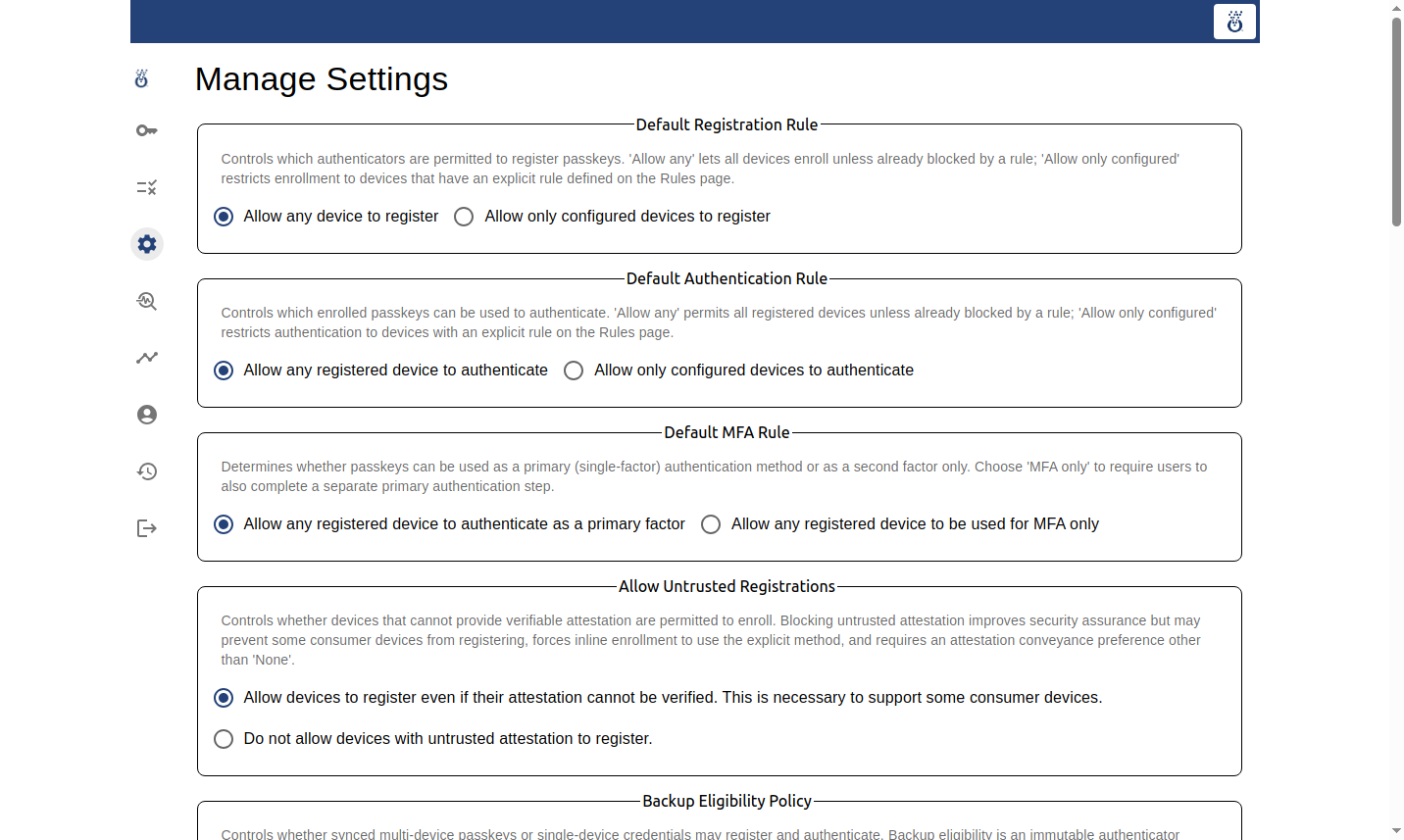
Manage Settings controls the default posture for passkey registration and use. This includes whether new device types may register or authenticate, whether passkeys can serve as a primary factor, how attestation is handled, which authenticator features are required, and how supported browsers prioritize passkey UI hints.
Enrollment posture
- Default Registration Rule
- Allow Untrusted Registrations
- Attestation Conveyance Preference
- Registration User Verification
- Require Resident/Discoverable Key
- Authenticator Attachment
- Registration Allowed Origins
- Backup Eligibility Policy
- Inline Registration Experience
- Preferred COSE Algorithms
- Registration Client Hints
Authentication posture
- Default Authentication Rule
- Default MFA Rule
- Backup Eligibility Policy for existing passkeys
- Authentication Client Hints
Registration and browser experience settings
Registration Allowed Origins is an exact HTTPS allow-list. Enter one origin per line and include every top-level page that hosts enrollment. A deployment with self-service registration and IdP inline registration normally lists both https://app.example.edu and https://idp.example.edu. Wildcards, paths, unrelated domains, and cross-origin iframe ceremonies are rejected.
Backup Eligibility Policy applies during registration and authentication. Allow both supports syncable multi-device passkeys and single-device credentials; Require backup-eligible permits only syncable credentials; Require single-device excludes syncable credentials. Changing this setting can block already-enrolled passkeys that do not match the new policy.
Inline Registration Experience controls the post-password IdP enrollment page. Standard inline setup (default) waits for the user to select the setup button. Automatic Conditional Create is opt-in: after a successful sign-in with a recently used saved password, a capable browser and its default password manager may create and save a passkey without another site interaction or prominent WebAuthn prompt. The provider may show a completion notice. The saved-password username must exactly match the full canonical username, and required registration user verification or trusted attestation selects standard setup instead. Unsupported, ineligible, declined, and timed-out attempts retain the setup button. Selecting that button or continuing without a passkey cancels any pending conditional request.
The Sync status column in My Passkeys and Manage Credentials reports Synced, Sync available, Single device, or Not reported. The Discoverable column reports Yes, No, or Not reported based on information supplied by the browser during registration. Discoverability is troubleshooting information, not an authorization decision.
Each visible column label in these tables provides a short explanation on pointer hover or keyboard focus. The label remains the column's accessible name, and the explanation is exposed separately to assistive technology.
Supported browsers and password managers automatically update their saved passkey information after a registration is rejected, after a user deletes a passkey, and when the user opens My Passkeys. No action is required when a browser does not support these updates, and registration, deletion, and account access continue normally.
Daily operating rhythm
Review failed authentications
Check failure trends in System Logs and repeated support issues early so policy, browser, or device problems are caught quickly.
Audit stale or duplicate credentials
Review passkeys with old last-use dates, duplicates, or credentials tied to lost and retired devices, and remove them when appropriate.
Refine policy gradually
Use the combination of default rules, per-device rules, and attestation controls to tighten security without blocking legitimate user adoption.
Measure adoption
Track successful authentications, active-user growth, and average passkeys per user to determine how quickly passkey usage is spreading.
Recommended practices
- Encourage users to register more than one passkey so they have a backup device.
- Ask users to choose names that distinguish the device or password manager, such as Work laptop or Personal phone.
- Document an identity-verified recovery process for users who lose every registered passkey.
- Define separate admin and helpdesk authorization policies rather than reusing the same broad role.
- Give helpdesk staff only the credential and log access needed for support; reserve rules and global settings for administrators.
- Use per-device rules when you need to allow or restrict specific authenticator classes.
- Review attestation and untrusted-registration settings before turning on a strict managed-device posture.
- Verify both registration origins and test existing credentials before tightening backup eligibility policy.
- Test policy changes with each supported browser and authenticator class before applying them broadly.